As is true with most technology, card readers need to be updated from time to time for security and feature updates. These are not Touchpoint updates, but firmware from the manufacturer that needs to be installed on your card readers for them to function correctly with Touchpoint's solutions. Because of this, the update must be done by the brand/store.
TABLE OF CONTENTS
- Download the Magtek Reader Management System v2 app
- Forget the Reader from ALL devices
- Launch Magtek app and select appropriate settings
- Put Card Reader into Pairing mode
- Select Device from list
- Once paired and selected, tap the "Device" tab at the bottom of the screen
- Select "Force Update" along with "Firmware" and "EMV Tags/CAPKS" and then tap the "Update" button
Download the Magtek Reader Management System v2 app.
https://apps.apple.com/us/app/magtek-rms-v2/id6738223218Forget the Reader from ALL devices
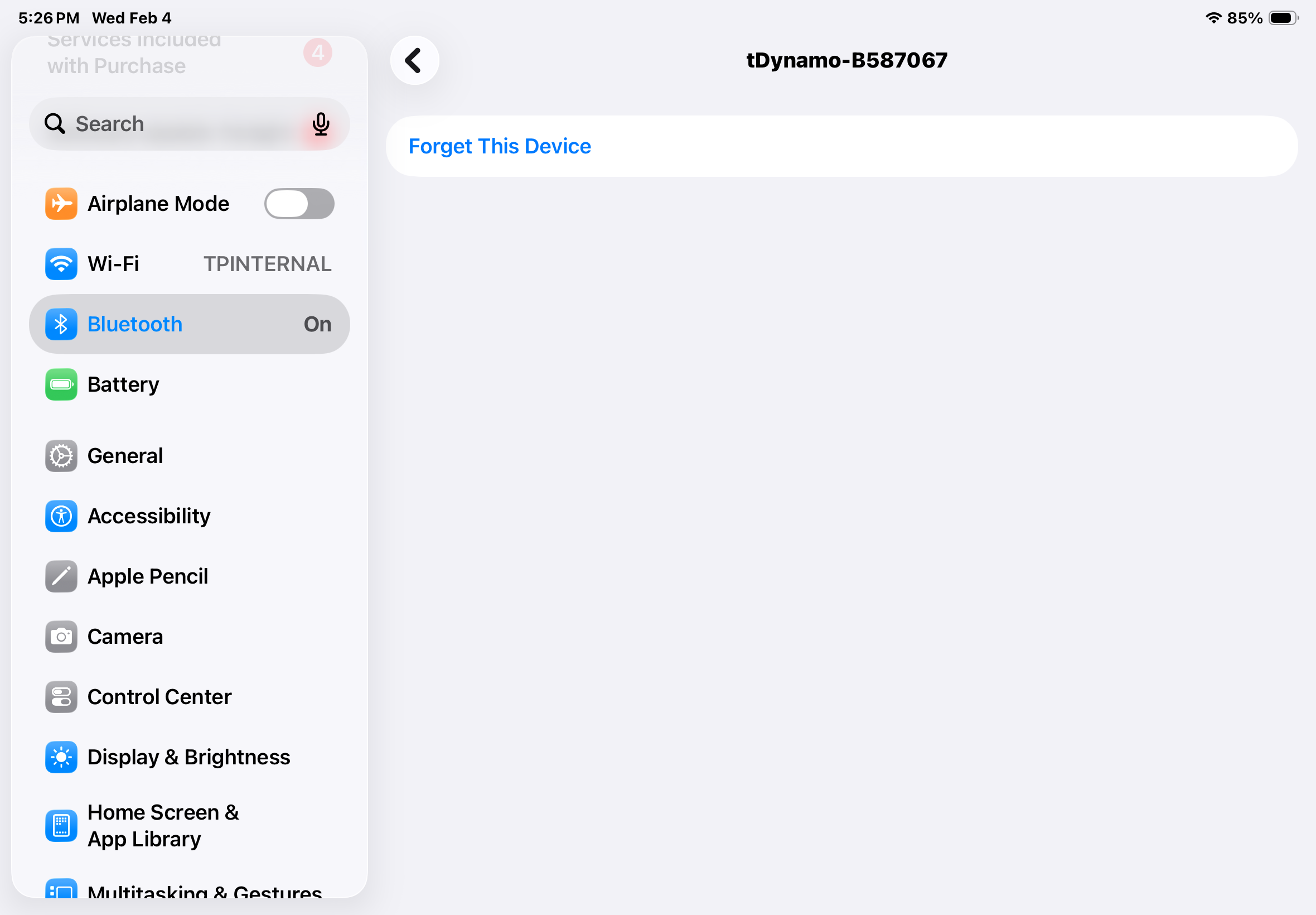
- Go to Settings on the iPad, select "Bluetooth" and click the small blue "i" next to ALL card readers and forget the device on the iPad.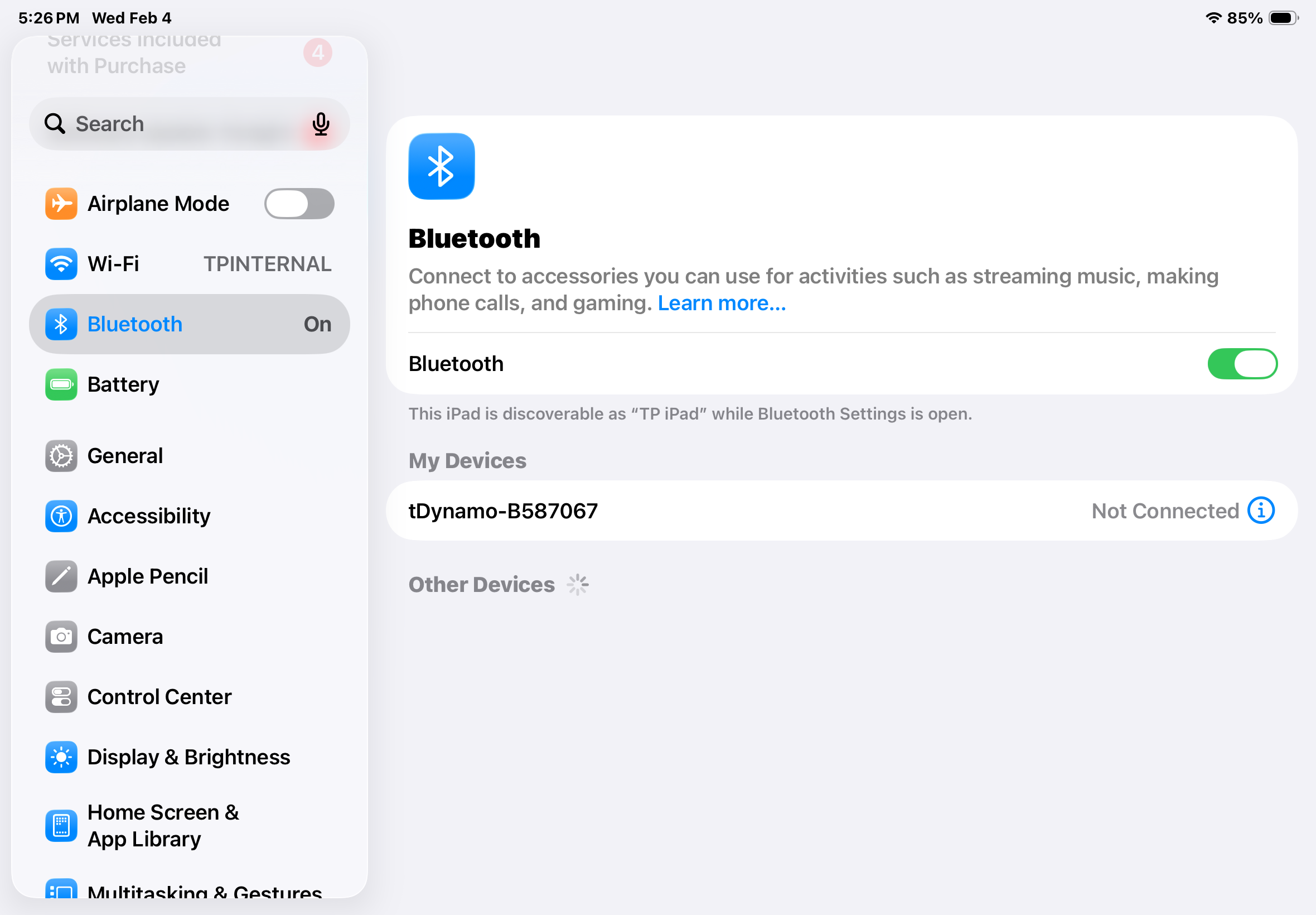
Launch Magtek app and select appropriate settings
- "DynaFlex/DynaProx" - This is used for updating DynaFlexIIGo card readers
- Leave API KEy and Profile Name as is
- "MagneSafe"- This should be selected to update tDynamo card readers
- "Lightning/USB-C" - This should only be selected if you are attempting to directly connect a DynaFlexIIGo unit to the iOS device using a cable
- "Bluetooth LE" - This should be selected when attempting to update the card readers over bluetooth.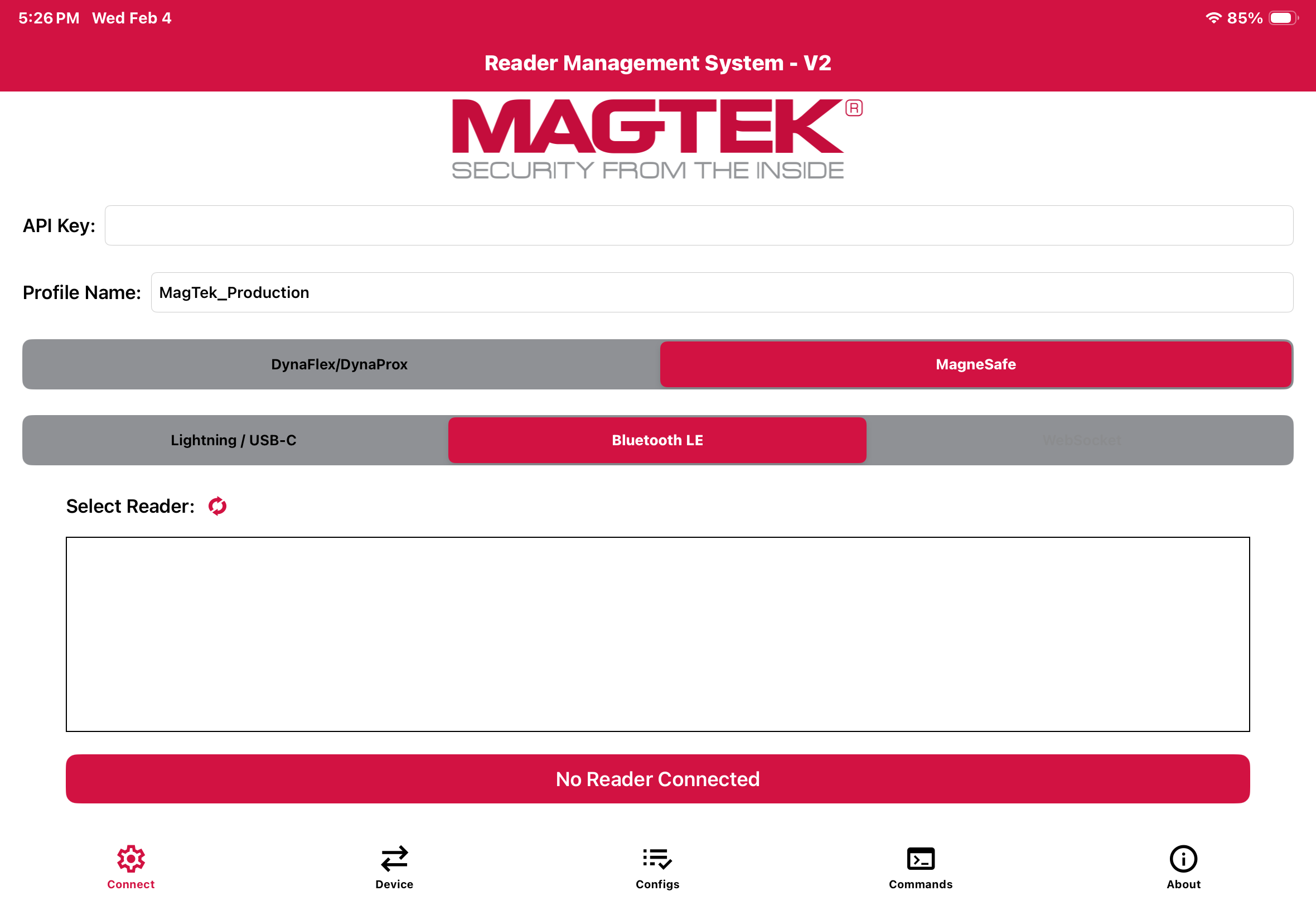
Put Card Reader into Pairing mode
- DynaFlexIIGo - After powering on, hold side button until 4 beeps, 1st light is on, 4th light is blinking
- tDynamo - After powering on, hold the side button for 2 seconds until lights go off, and bottom light faintly blinks blueSelect Device from list
- If using a tDynamo unit, you will need to select "tDynamo" when prompted on a device type
- You may need to refresh the device list.
- Select "Pair" if an iOS pop-up appears. No need for pairing code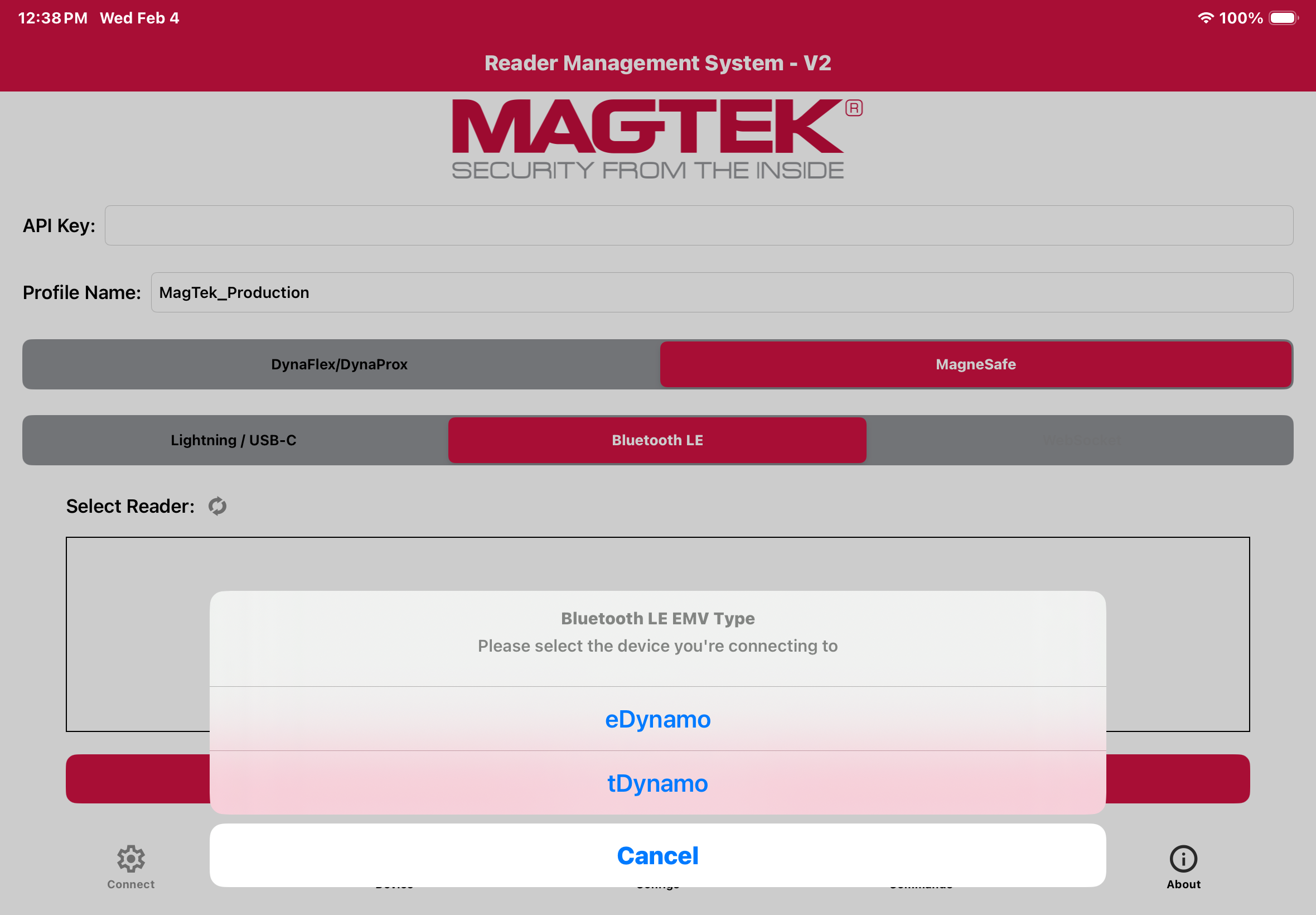
Once paired and selected, tap the "Device" tab at the bottom of the screen
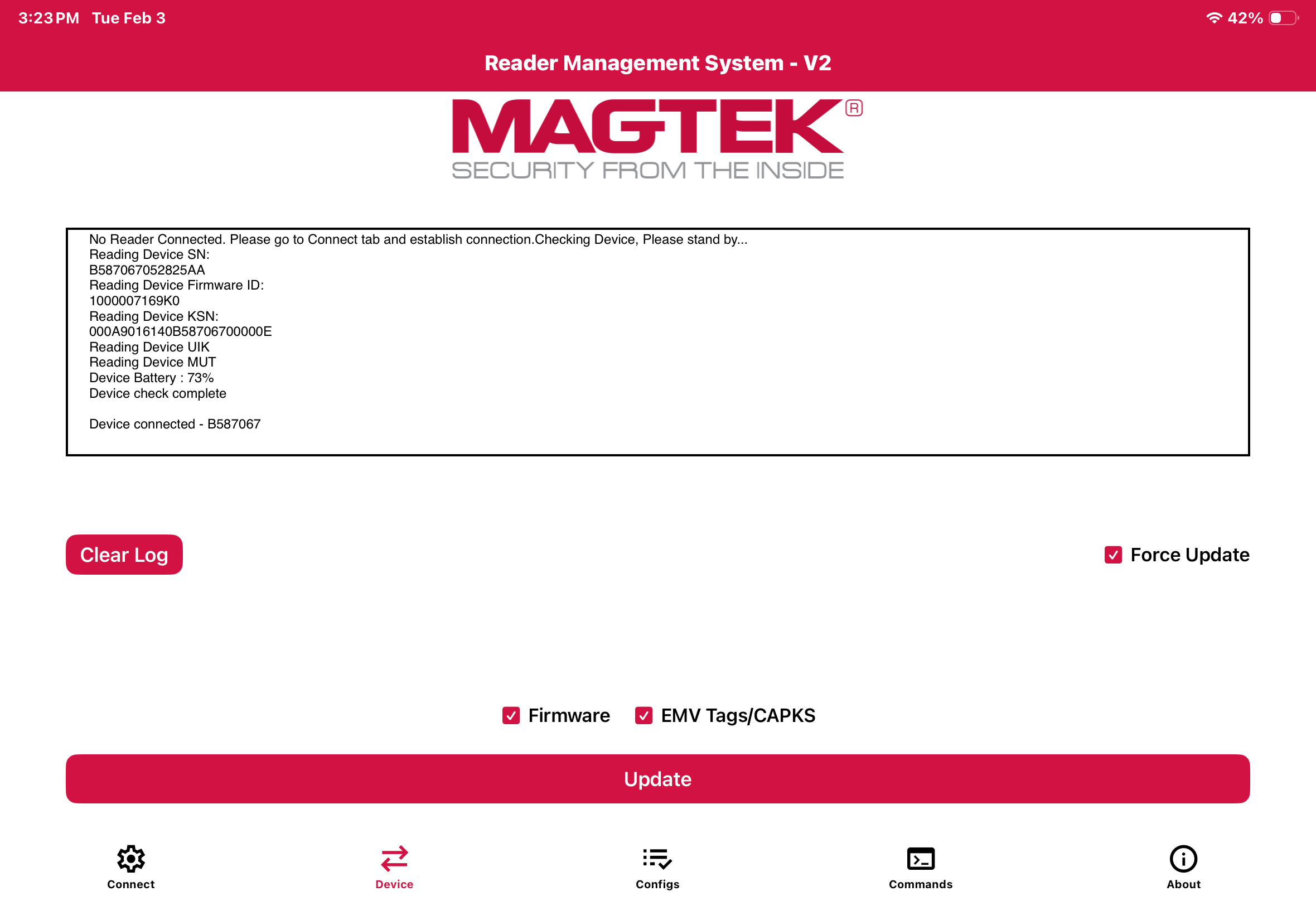
Select "Force Update" along with "Firmware" and "EMV Tags/CAPKS" and then tap the "Update" button
- Update process may take up to an hour to complete, and will likely include prompts that a user needs to accept. Please stay with the card reader and iPad during this process.
Was this article helpful?
That’s Great!
Thank you for your feedback
Sorry! We couldn't be helpful
Thank you for your feedback
Feedback sent
We appreciate your effort and will try to fix the article