Magtek Card readers are a great payment option and we have found that they work excellent in many locations. The biggest issues we have seen are listed below along with steps that can be used for troubleshooting and getting the readers working again.
Make sure that the card reader has at least 25% Charge, or is plugged into power
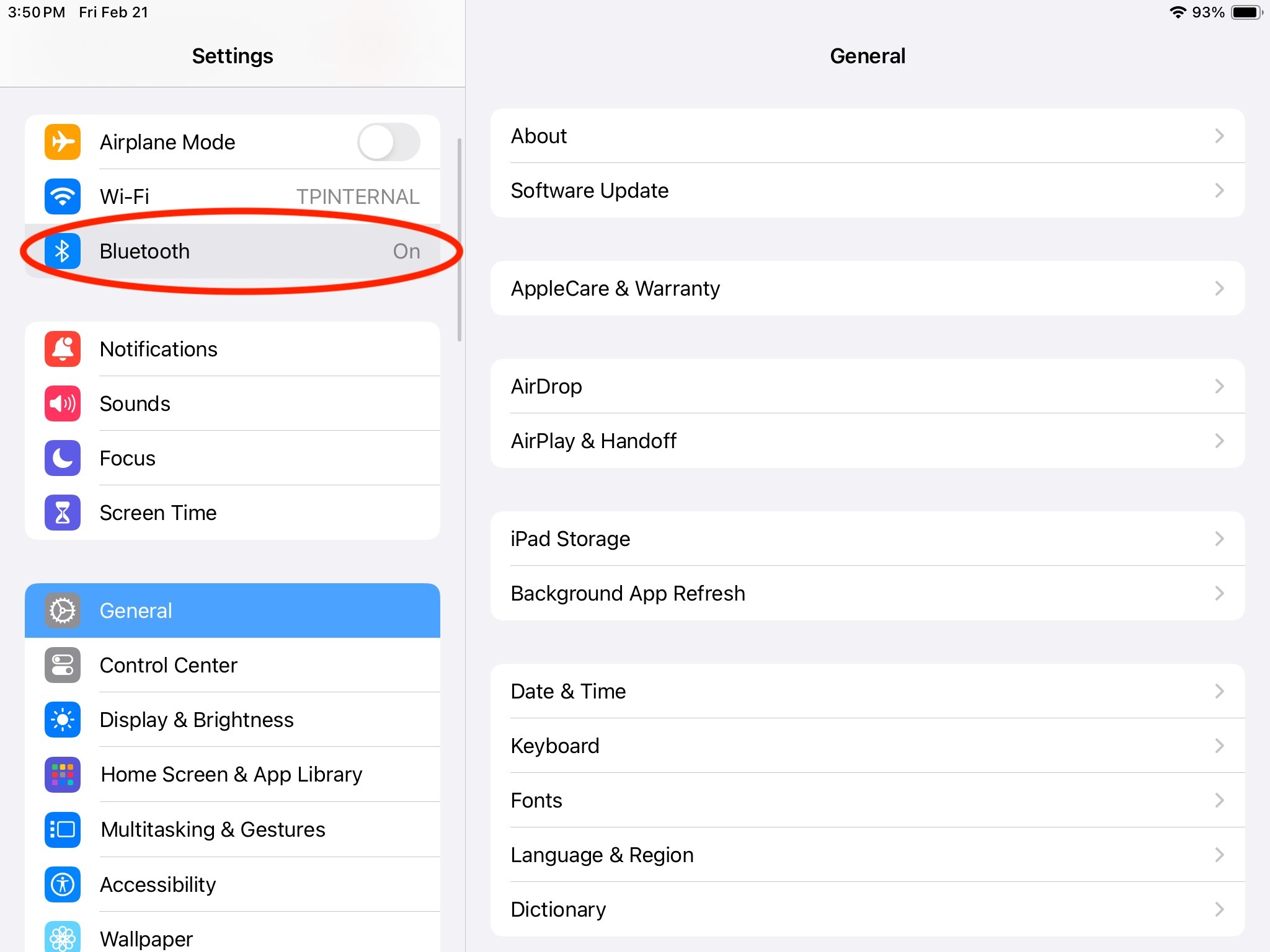
Bluetooth settings: On your iPad, navigate to "Settings" and select "Bluetooth."
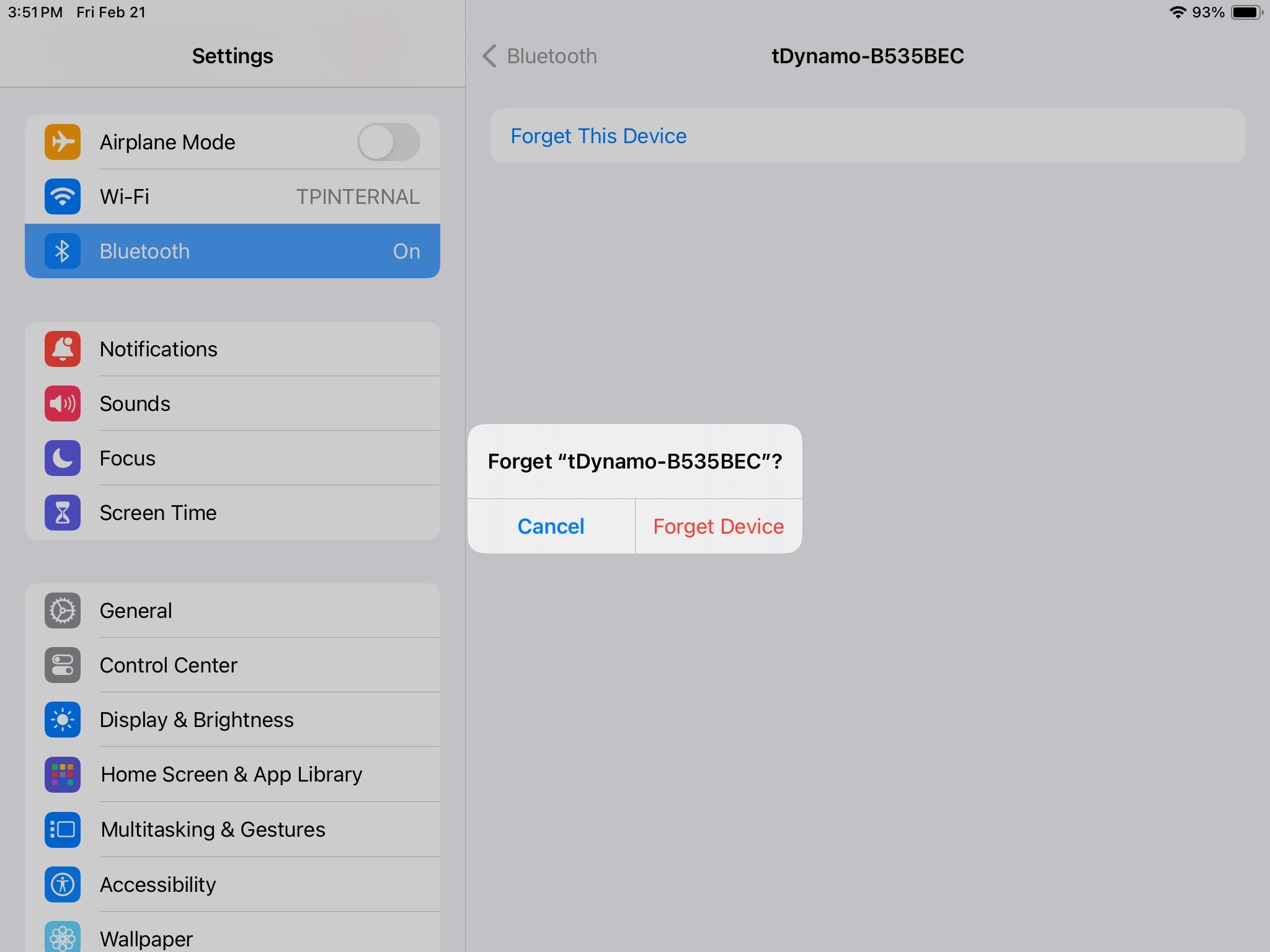
- Forget paired devices: Tap the "i" icon next to each device listed and select "Forget" to remove them from the list.
- Depending on the type of reader that you are working with, "My Devices" may show "tDynamo-#######" or "DF II Go-#######" 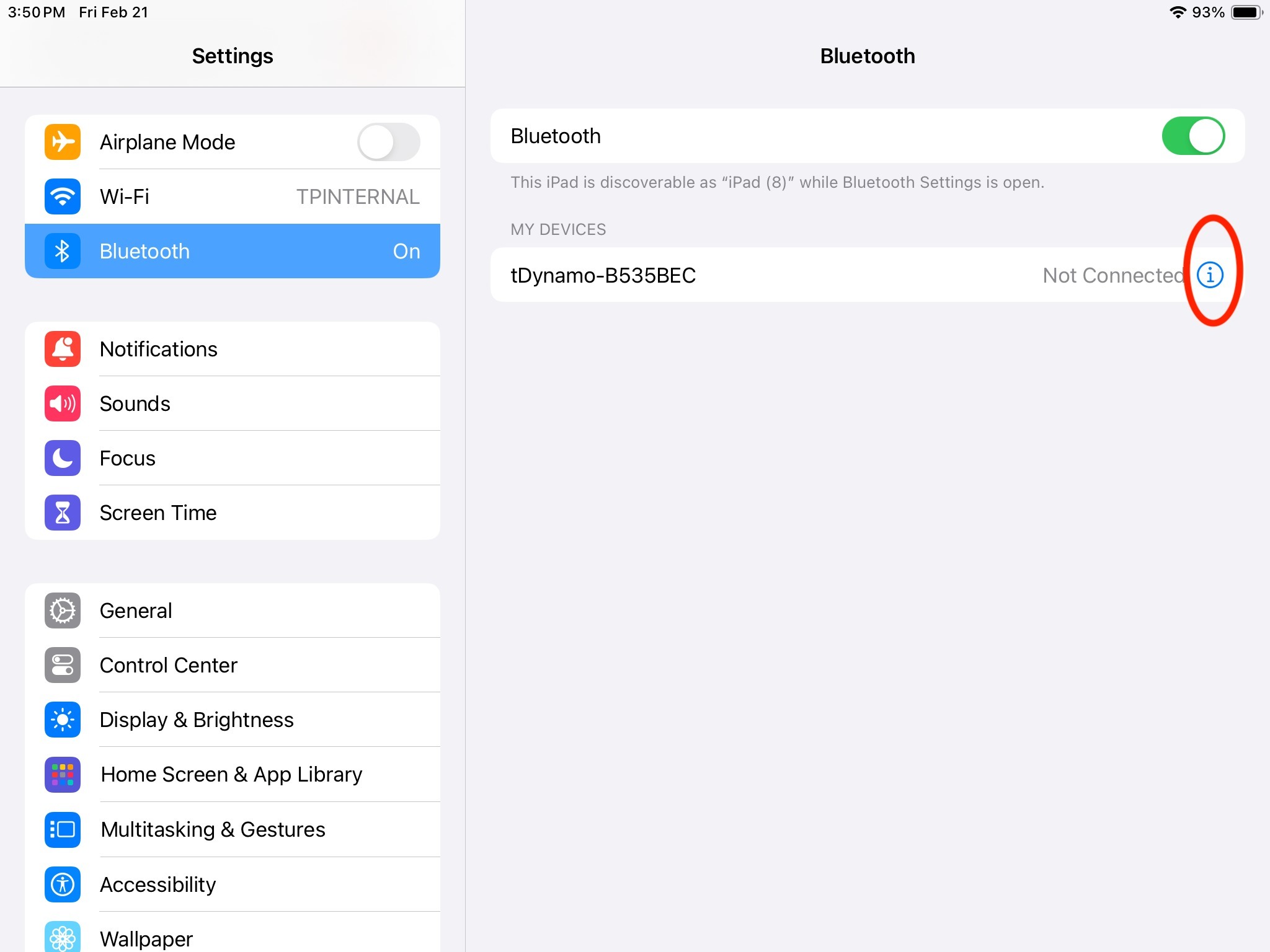
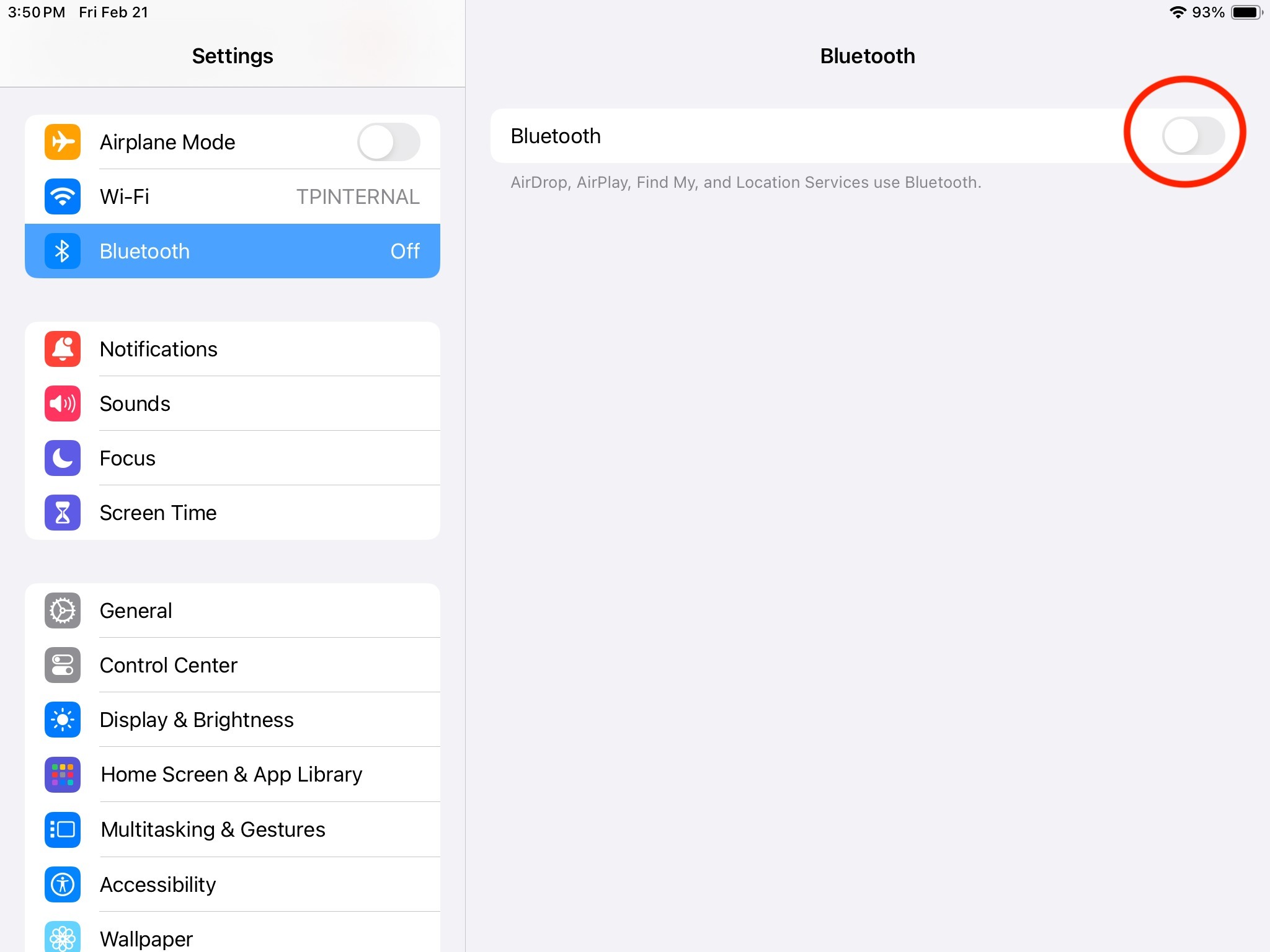
 Toggle Bluetooth off and on: Turn off Bluetooth on your iPad, then toggle it back on.
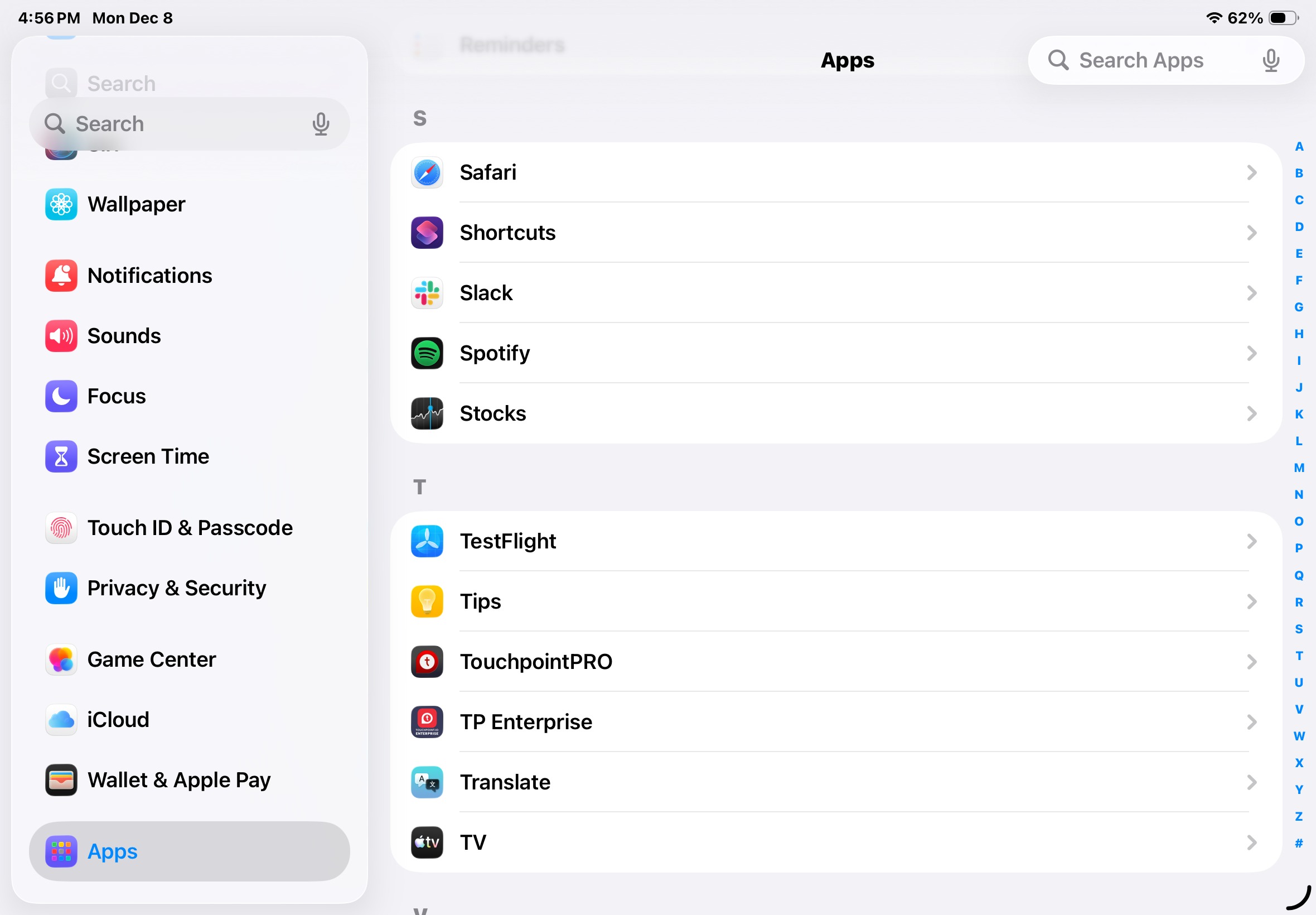
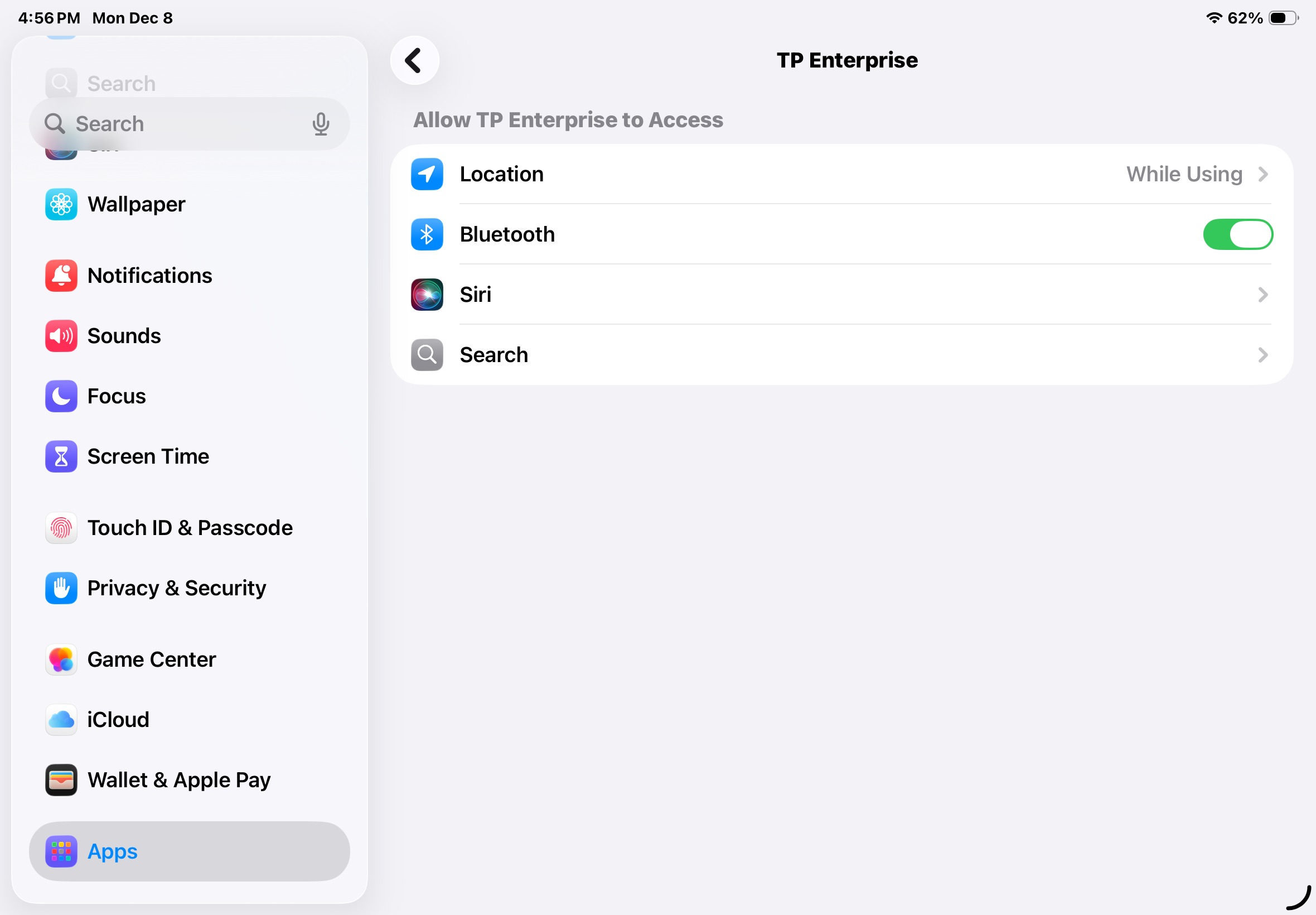
- Go back to the settings screen, at the bottom touch on Apps, and then TP Enterprise, make sure Bluetooth access is enabled.
- If it is enabled, disable the access and then re-enable it. If it's not enabled, enable it.
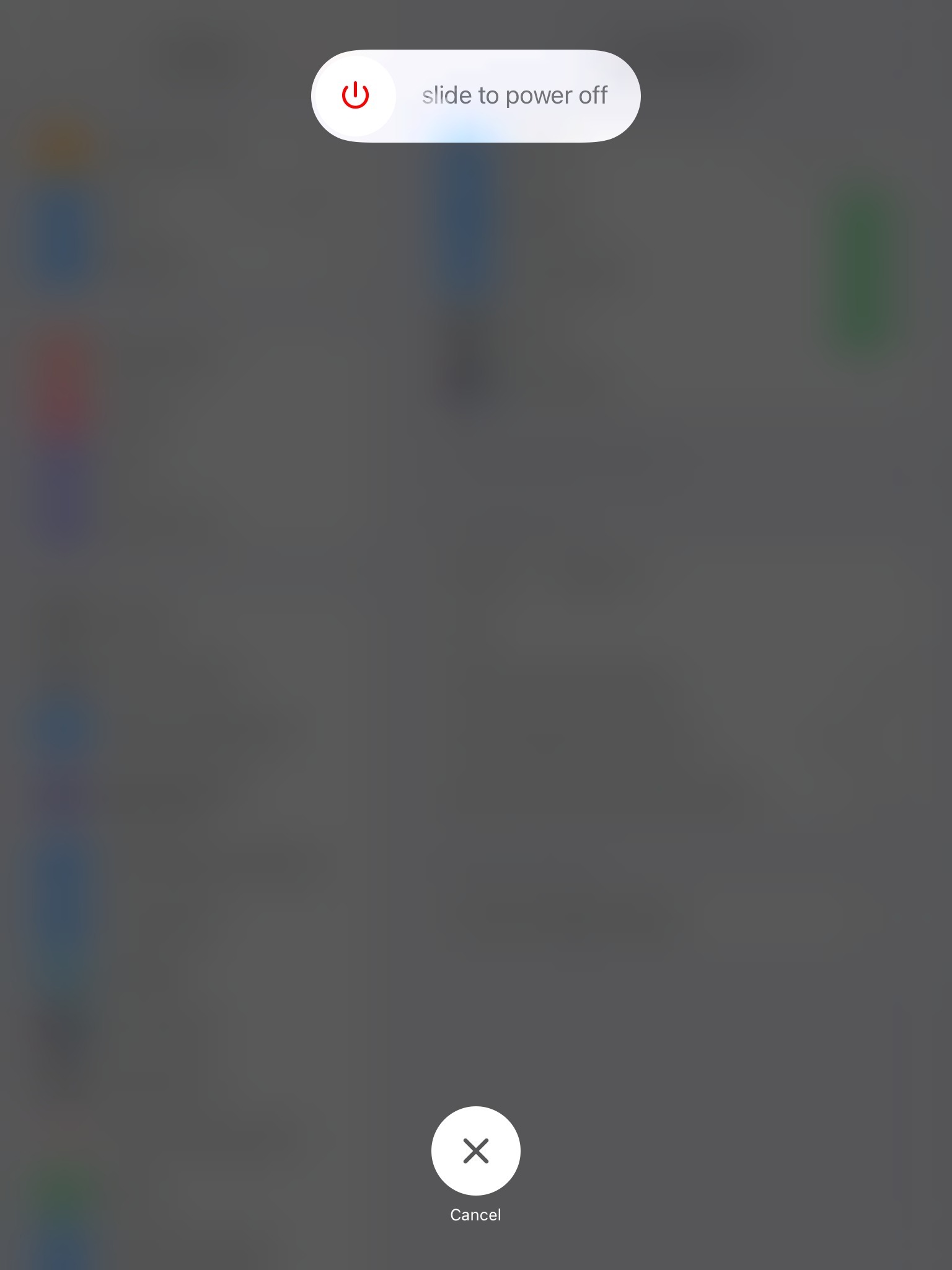
- Power off and on: Completely power off your iPad and then turn it back on. (Restart Instructions)
- Launch TP Enterprise: Once your iPad is back on, open the TP Enterprise app.
- Card reader setup: In the TP Enterprise app, forget the card reader that was previously assigned.
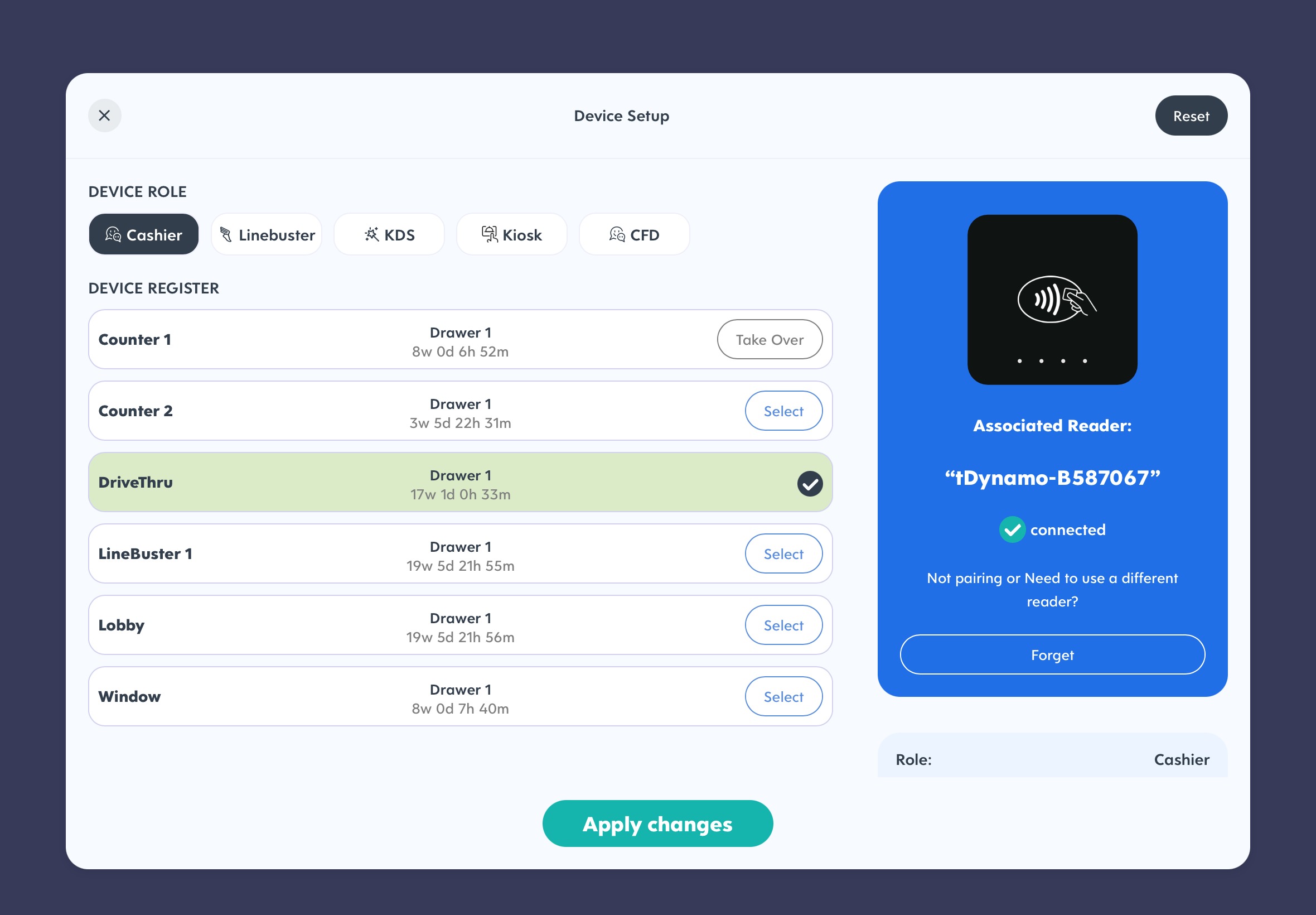
- Pair the reader:
- For tDynamo units: Follow the instructions at www.touchpoint.io/magtek to put one card reader in pairing mode. Select the reader from the list in the app and pair it, using the serial number (S/N) as the password.
- For DynaFlexIIGo units: Follow the instructions at HERE to put a card reader in pairing mode. Select the reader from the list in the app and pair it, using the serial number (S/N) as the password.
Test the reader: Once the pairing is complete, test the reader to see if the previous issues persist.
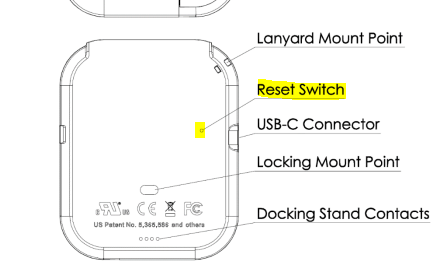
Reset: For tDynamo units ONLY:
If the issue you have is not resolved by the steps above, please try resetting the card reader by following these steps:
Push the pin hole reset button on the back of the reader. After pressing this button, connect the reader to charge and test again after a bit of charge.
If the reader is still having issues, please reach out to support and let us know these steps have been taken and what the exact issue with the reader is, including the serial number of the card reader.
PLEASE NOTE: If there is no serial number available for the card reader, we cannot process an RMA for it. At this point we will send an order form to purchase a new reader.
Was this article helpful?
That’s Great!
Thank you for your feedback
Sorry! We couldn't be helpful
Thank you for your feedback
Feedback sent
We appreciate your effort and will try to fix the article